
The Value of Copilot Chat Inside Microsoft 365 Apps
Jan 12, 2026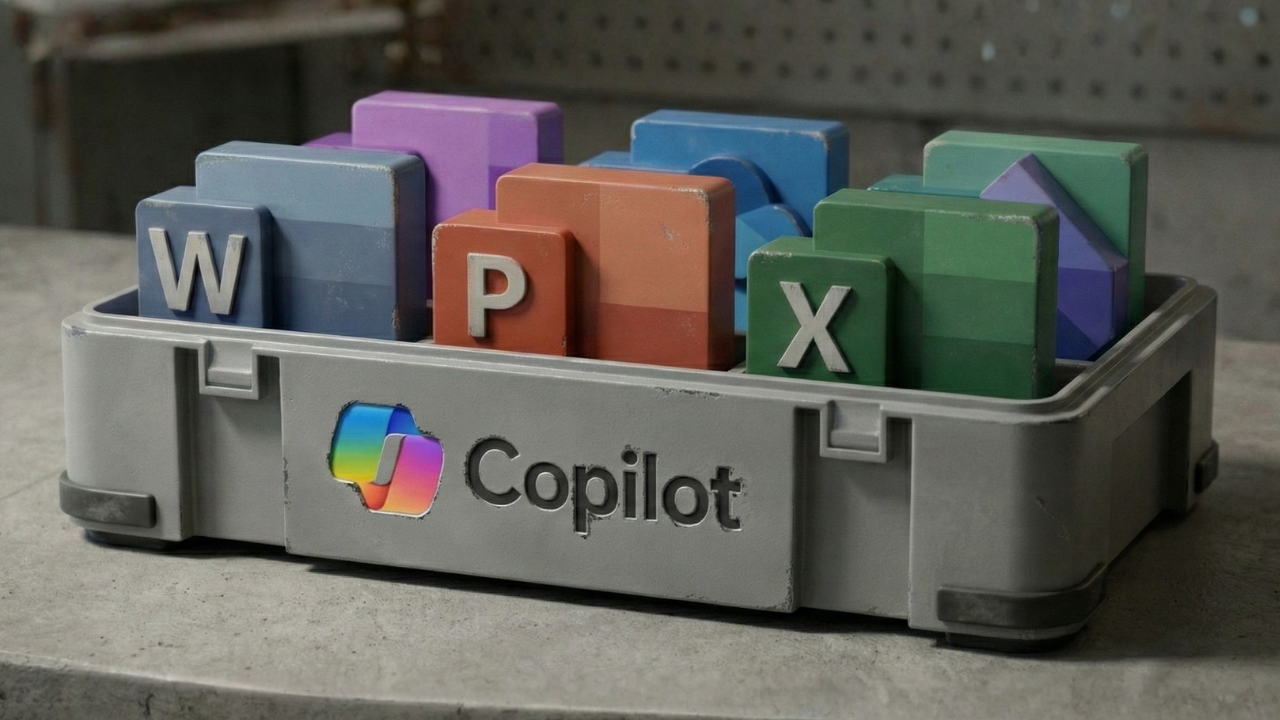
The Value of Copilot Chat Inside Microsoft 365 Apps
Post 3 of the series: Starting with Copilot Chat
In the last post, we looked at why ChatGPT can often feel better when you compare the two as chat tools.
It tends to talk more, explain more and give you more back. Copilot Chat can feel much more direct.
That comparison only gives us part of the picture.
The next part is what happens when Copilot is sitting alongside the work you are already doing in Microsoft 365. Outlook, Teams, Word, Excel, PowerPoint.
These are tools many of us already spend a large part of our working day using.
And this is where Microsoft Copilot starts to become much more interesting.
One thing worth clearing up before we go further.
What you can do with Copilot inside Microsoft 365 depends on the Microsoft 365 subscription you have, the Copilot licence assigned to you and the settings your company has put in place.
Microsoft also continues to develop these capabilities quite quickly.
So rather than turn this into a feature-by-feature comparison that will probably need updating again, I want to focus on what actually matters.
What changes when Copilot is sitting alongside the work you are already doing?
Outlook. Email and calendar, the stuff that eats your day
Let's start with Outlook because email and meetings take up a huge amount of time for most people.
Emails arrive all day.
Threads get longer.
Someone replies to something from two weeks ago and suddenly you are trying to remember what the conversation was about, what was agreed and what you now need to do.
This is exactly the type of work where Copilot starts becoming useful.
Email
Think about the questions you normally have when you open a longer email or email thread.
-
What is this actually about?
-
What am I being asked to do?
-
Is there a deadline?
-
Is there anything I need to respond to?
-
Can you help me prepare the reply?
Copilot can help you work through these questions while you are already in Outlook.
Depending on the Copilot access you have, it can also help you work across your inbox rather than dealing with emails one by one.
You might ask it to summarise emails relating to a particular customer or project, identify messages you need to deal with, or help prepare an update based on recent conversations.
The useful part is the amount of context you no longer need to explain yourself.
You are already working in Outlook.
The emails are already there.
You can move much more quickly from reading something to understanding what needs to happen next.
Calendar
The same applies to meetings.
How often do you look at your calendar and see a meeting starting in 20 minutes that you have barely thought about?
You know who is attending. You recognise the title. You probably remember why it was booked.
Copilot can help you prepare much more quickly.
What is this meeting about? What do I need to prepare? When did I last speak with these people? What have we been discussing? What actions are still open?
The level of information Copilot can bring together depends on your licence and access, but the work itself is very normal.
You are preparing for a meeting.
Copilot is helping you do that preparation faster.
Word. Working with documents you already have
Most people do not spend every day creating completely new documents.
We open something that already exists.
A proposal. A report. A course outline. A policy. A customer document.
Something that is nearly there and needs more work.
For us at Koshima, this happens all the time with course outlines, proposals and training material.
We might have a document that contains all the right information and still does not read the way we want it to.
This is where I find Copilot useful.
We can start by asking very simple questions.
-
What is this document actually saying?
-
What are the main points?
-
Where is it repetitive?
-
What might be unclear to somebody reading it for the first time?
-
Does the order make sense?
Then we can start working through the changes.
For example, take a course overview and ask Copilot to look at it from the customer's point of view.
Does the purpose come through clearly? Would somebody understand what they are going to learn? Is anything repeated? Which sections need more explanation?
Then work through those areas one at a time.
With the appropriate Copilot access, that work can increasingly happen directly within the document itself.
That saves a surprising amount of time because the work stays close to the document you are already trying to improve.
Excel. Understanding what the numbers are telling you
Excel is where this becomes interesting for people who are comfortable working with business information and less comfortable building formulas, analysing large spreadsheets or working out where to start.
We have used Copilot with spreadsheets containing income, costs and many rows of information.
The starting questions can be extremely simple.
-
What are the main patterns here?
-
Where is most of the money going?
-
What has changed?
-
What stands out?
-
Is there anything here I should investigate?
You can then continue the conversation based on what Copilot finds.
Why does that number stand out?
Show me the data behind it.
Compare these two periods.
Break this down another way.
Create a visualisation that makes this easier to understand.
For someone who does not spend their life working in Excel, this can make a spreadsheet much easier to work with.
And with more advanced Copilot capabilities, you can go further into making changes to the workbook itself, building formulas, reshaping information and developing the analysis.
The important part for me is the starting point.
You can begin with the business question you are trying to answer.
What is this spreadsheet telling me?
Then work from there.
PowerPoint. Working with an existing presentation
PowerPoint is another very common example.
You already have the presentation, it has been reviewed and has probably been changed several times. Then someone asks you to add something.
We regularly have this happen with customer presentations.
Maybe there is a new section that needs adding or somebody wants more detail on one subject. Maybe the presentation is too long and needs tightening. Maybe you want to understand what questions an audience is likely to ask.
Copilot can help you work through the presentation itself.
- You can ask it to summarise the deck.
- Identify the main messages.
- Review a particular slide.
- Rewrite bullets.
- Suggest what is missing.
- Prepare likely audience questions.
- Help develop the content for another slide.
Current Microsoft 365 Copilot capabilities can go further again and make changes directly within presentations where the relevant access is available.
We used an earlier version of this with a customer presentation on AI in the logistics sector.
We had been asked to add specific information about seaports.
We brought together the research, worked through what mattered and used Copilot to help create the additional content for the presentation.
That is a very normal piece of work.
Research something. Understand it. Work out what matters. Turn it into something useful for the audience. Add it to an existing presentation.
Having Copilot available where that work is already happening removes a lot of the movement between tools.
What this starts to show
Across Outlook, Word, Excel and PowerPoint, the value becomes much easier to see when Copilot is working alongside the thing you are already working on.
Emails become easier to work through.
Meeting preparation gets faster.
Documents become easier to review and improve.
Spreadsheets become easier to understand.
Presentations become easier to develop.
You spend less time moving information around and explaining the same context again. And this is an important part of Microsoft 365 Copilot training.
People need to see what the tool can actually help them do with the work sitting in front of them.
What about ChatGPT?
We use ChatGPT extensively as well.
It can work with documents, spreadsheets, presentations and other files. It can create files and help you develop work through several stages.
There are many tasks where we choose to use it.
The experience changes when your work is already happening inside Outlook, Word, Excel or PowerPoint and Copilot is available there with you.
That is especially relevant for companies where most everyday work already takes place inside Microsoft 365.
- The question I would ask is very simple: What work are you trying to get done and which tool gives you the most useful way to do it?
That is a much better question than deciding which AI tool you prefer based on a few conversations in a chat window.
Why a lot of people never see this
A lot of people still experience Copilot through a handful of basic prompts.
Open Copilot.
Ask a question.
Get an answer.
Maybe compare that answer with ChatGPT.
Move on.
That barely starts to show what the tool can help with.
Once people begin using Copilot with Outlook, Word, Excel, PowerPoint, Teams and the information they already work with, there are many more useful tasks available.
This is also why giving employees Microsoft 365 Copilot licences is only the beginning.
People still need to learn how to work with it.
They need examples that relate to their job, to understand what information to give it and they need to work through tasks rather than relying on one prompt.
And they need to review what comes back before using the result.
Key takeaway
-
Copilot becomes much more useful when it is working alongside the Microsoft 365 apps people already use
-
Outlook, Word, Excel and PowerPoint all provide very practical places to start
-
The exact capabilities available depend on your Microsoft 365 and Copilot access
-
Start with the work people actually need to complete
-
People still need to learn how to use Copilot well to get consistent value from it
What comes next
Once AI starts becoming part of email, documents, spreadsheets, presentations and other everyday work, another conversation becomes unavoidable.
What information are people giving these tools?
Which accounts are they using?
What can the tools access?
And does the business actually know how AI is being used?
That is what we look at next.
Post 4: Security, trust and compliance with AI.